
GA4 Setup Mistakes That Break Your Marketing Reporting
By Relish Team
GA4 Setup Mistakes That Break Your Marketing Reporting
GA4 is powerful, but it’s also one of the easiest analytics tools to mess up.
Many businesses think GA4 is “installed” because the tracking code is present. But weeks later, they realize the reporting doesn’t make sense. Leads look lower than expected. Conversions aren’t tracked properly. Traffic sources show as “unassigned.” And nobody trusts the numbers anymore.
This is not a small issue. When GA4 tracking is wrong, you can’t measure marketing performance correctly. You end up making decisions based on incomplete or inaccurate data.
In this blog, we’ll cover the most common GA4 setup mistakes that break reporting and how to fix them so your traffic, conversions, and campaigns can be measured correctly.
Why GA4 tracking breaks so often
GA4 isn’t like Universal Analytics. It’s event-based, which means most of your business-critical actions must be configured properly as events and conversions.
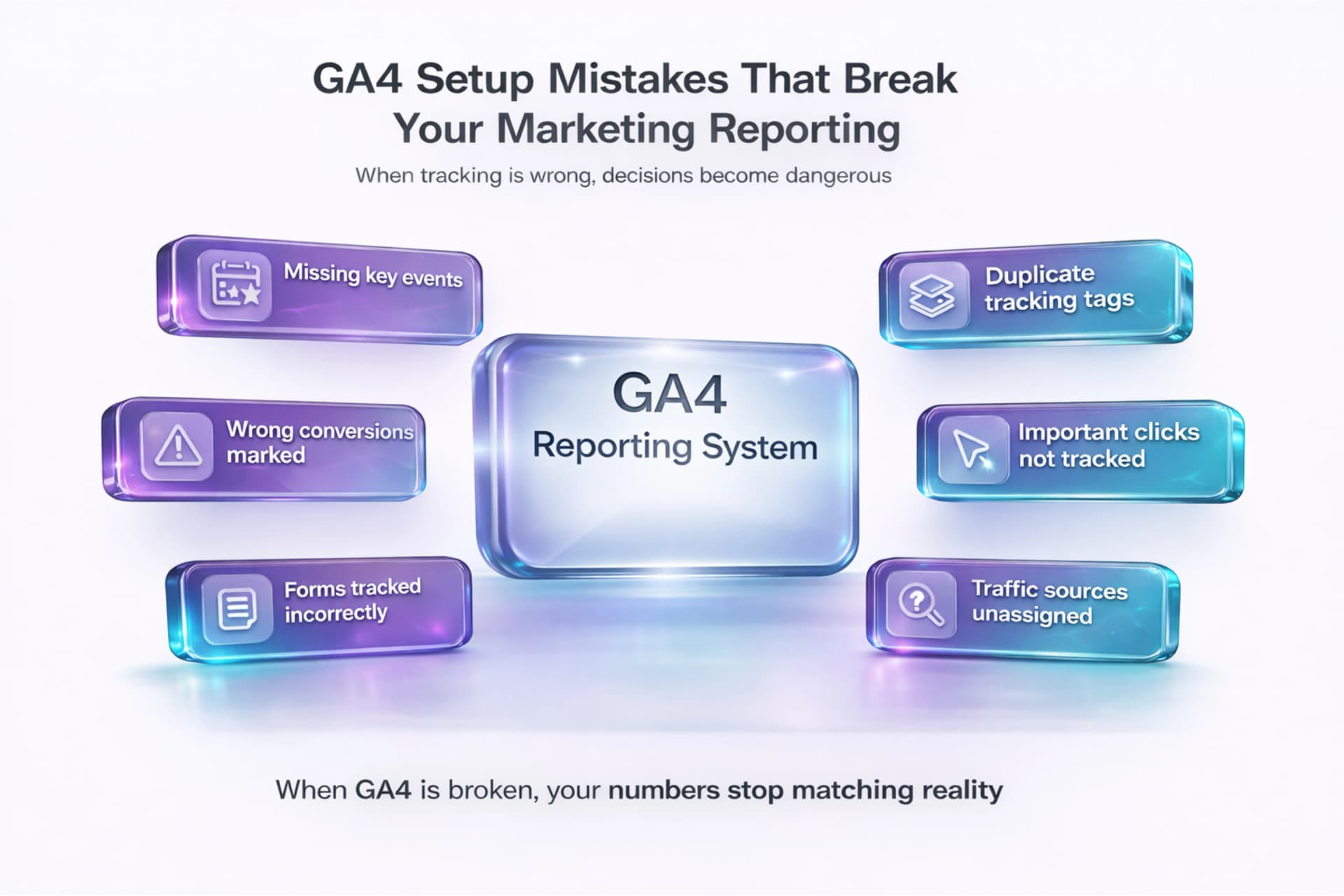
GA4 breaks most often when:
- tracking is installed, but events are missing
- conversions are not marked correctly
- traffic sources are not captured properly
- forms and button clicks are not measured
- multiple tracking tags conflict with each other
The biggest sign of broken GA4 is simple: the numbers don’t match reality.
GA4 setup mistake #1: Tracking is installed, but no events are configured
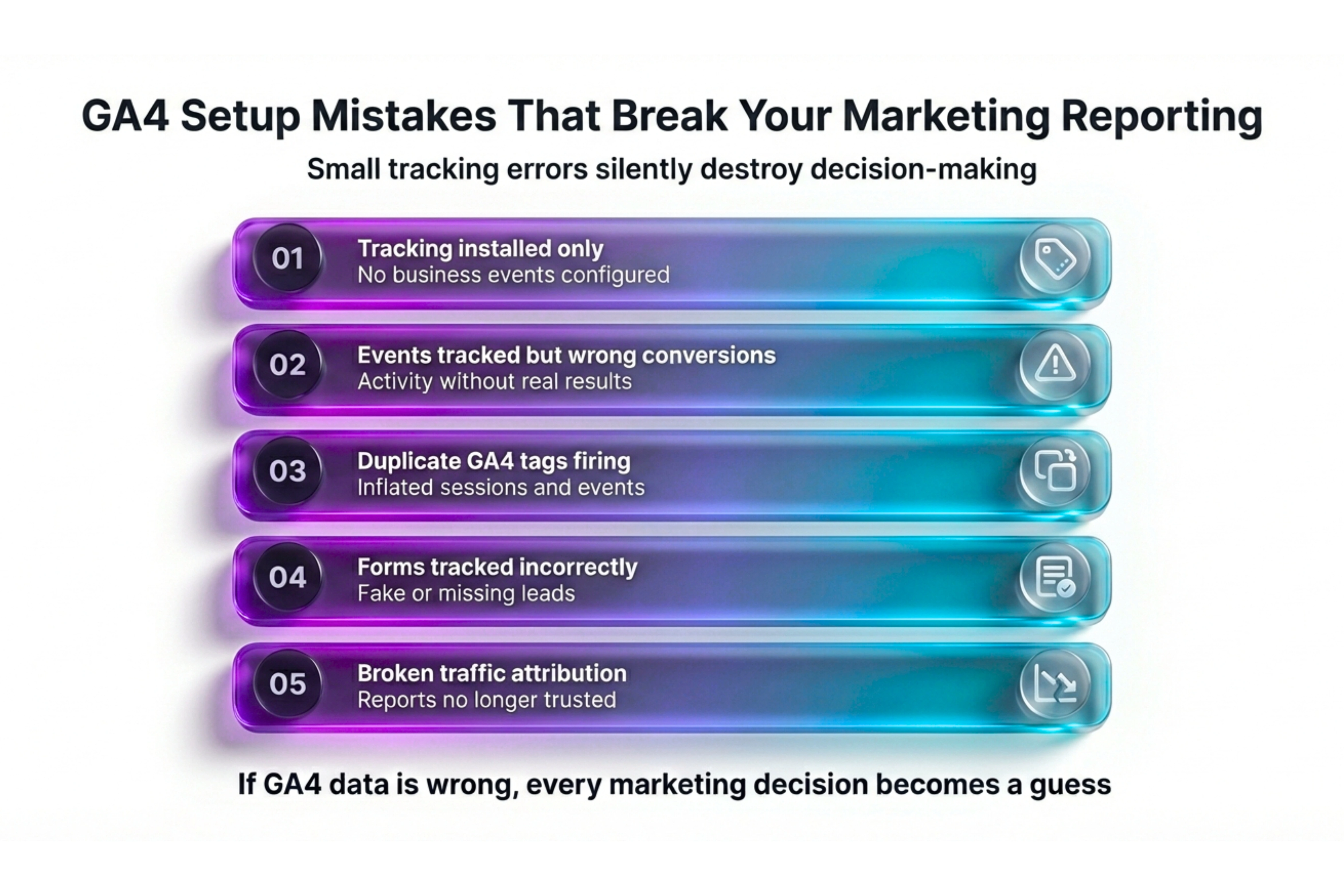
This is the most common problem.
GA4 by default captures basic events like `page_view`, `scroll`, and `session_start`. That’s not enough for marketing performance.
If you’re running a service business or lead-gen website, the most important actions are usually:
- form submissions
- phone clicks
- WhatsApp clicks
- “Request a quote” button clicks
- “Schedule a consultation” clicks
If these aren’t tracked, your reporting becomes traffic-only, not performance-based.
Fix: Decide your key business actions first, then configure those events through Google Tag Manager (GTM).GA4 setup mistake #2: Conversions are not marked correctly
Many sites track events but forget to mark the right events as conversions.
This creates two problems:
- you see activity, but you can’t measure results
- Google Ads optimization becomes weaker because conversions aren’t tracked properly
GA4 setup mistake #3: Duplicate tracking is inflating sessions and events
Duplicate tracking happens when:
- GA4 is installed directly in the website and also via GTM
- multiple GA4 tags fire on the same page
- old tracking scripts were never removed
This often causes:
- unusually high pageviews
- inflated events
- confusing user counts
- broken attribution
GA4 setup mistake #4: Form submissions are tracked incorrectly
Most businesses want to track leads, but form tracking is one of the most misunderstood parts of GA4.
The common issues:
- tracking a button click instead of actual submission
- counting fake submissions (when form fails)
- missing submissions due to AJAX forms
- tracking the same submission multiple times
GA4 setup mistake #5: Key button clicks are not tracked at all
Some of the highest-intent actions on service websites are clicks, not page loads.
Examples:
- click to call
- click to WhatsApp
- click “Request a proposal”
- click “Get a quote”
If you don’t track these, GA4 will underreport lead actions. You may think marketing isn’t working even when users are clicking.
Fix: Set click events for important buttons and links. Keep event names consistent and clean.GA4 setup mistake #6: Traffic sources show “Unassigned” or “Direct”
Many businesses see traffic sources like:
- direct
- unassigned
- not set
This happens when UTMs are missing or inconsistent.
Fix:- Use UTMs for paid campaigns, email marketing, social posts, and influencer links
- Keep naming consistent across teams
- Avoid changing campaign naming style every week
If you want accurate attribution, UTMs are non-negotiable.
GA4 setup mistake #7: You aren’t tracking what actually matters for business
GA4 should answer business questions, not just show graphs.
If your goal is lead generation, your GA4 should clearly report:
- which channel brings the most leads
- which landing page converts best
- where users drop before submitting
- which campaigns bring quality traffic
GA4 setup mistake #8: No testing is done after setup
Many teams set up GA4 once and assume it works forever.
But tracking breaks because of:
- website updates
- form changes
- button label changes
- redesigns
- GTM publishing errors
What a clean GA4 setup should include
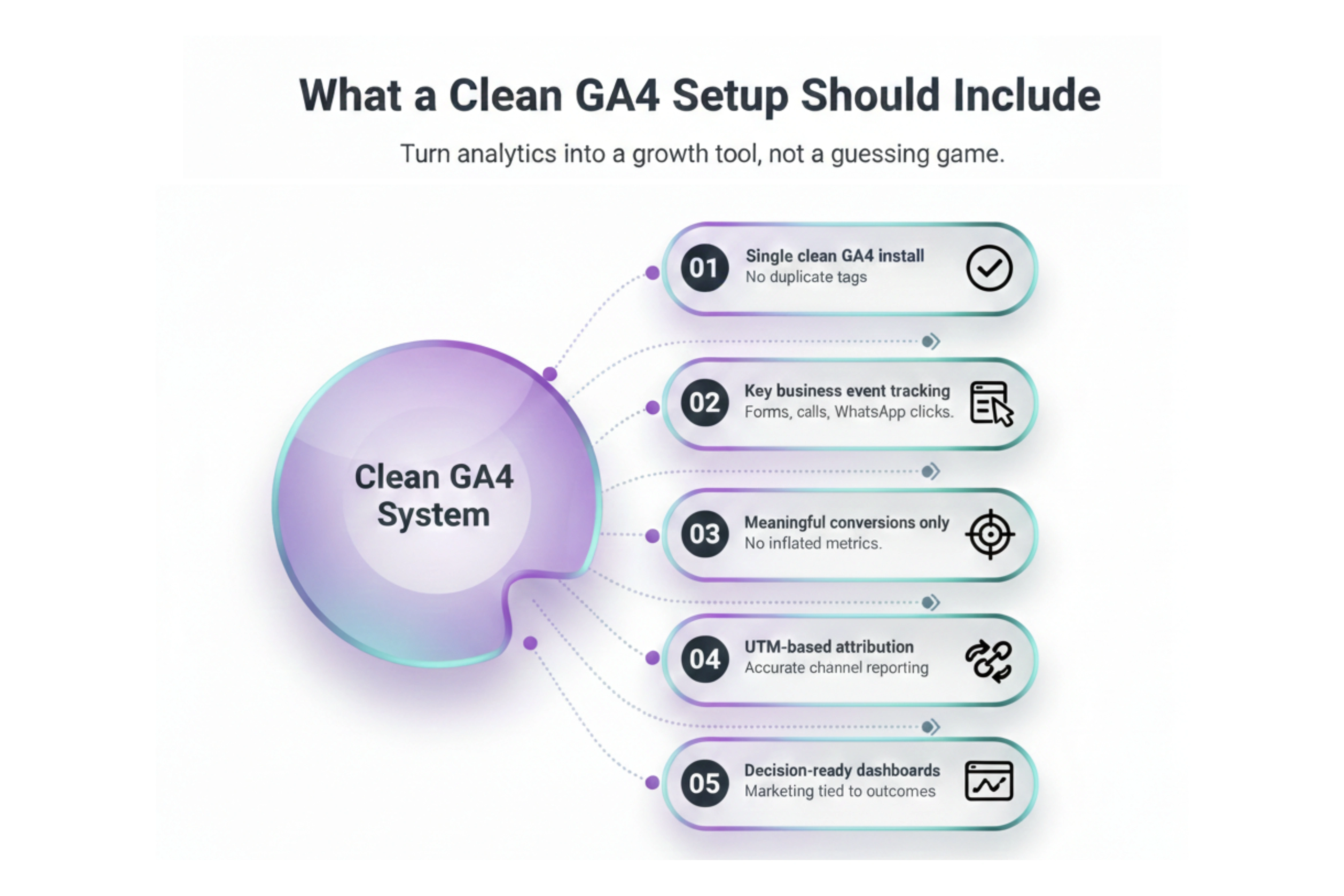
If you want GA4 to become a reliable decision tool, it should include:
- Proper GA4 install with no duplicate tags
- Key event tracking for lead actions
- Conversions marked correctly
- UTMs for campaign attribution
- Testing through GA4 DebugView
- Simple reporting that connects marketing to outcomes
A clean GA4 setup turns analytics into a growth tool, not a confusing dashboard.
If your business needs clean GA4 tracking, conversion setup, and decision-ready reporting, you can explore Analytics & Performance support with Relish Development Solutions.
